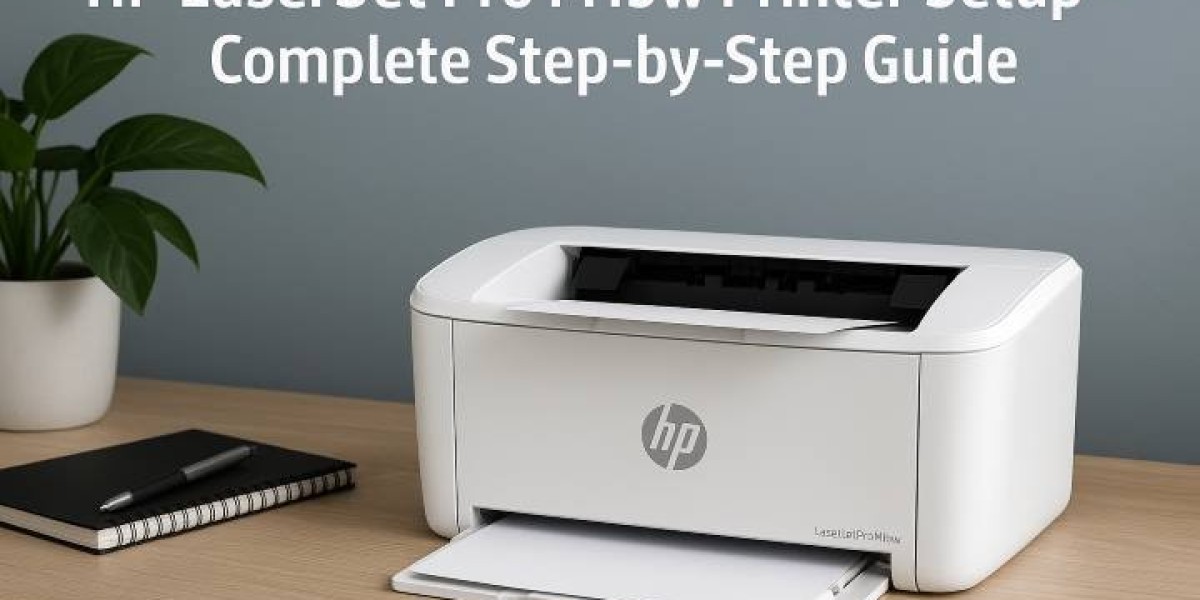

When you buy the HP LaserJet Pro M15w, you’re investing in one of HP’s most compact and efficient laser printers. It’s designed for small offices, students, and home professionals who want crisp black-and-white printing without the bulk. But to truly unleash its potential, you need to set it up correctly.
This guide will walk you through every step of the HP LaserJet Pro M15w Printer Setup—from unboxing to wireless connection, driver installation, testing, and troubleshooting. Whether you’re setting it up for the first time or reconnecting after a network reset, this walkthrough has you covered.
Understanding Your HP LaserJet Pro M15w
The HP LaserJet Pro M15w isn’t just another budget printer—it’s a compact powerhouse. Weighing under 4 kg, this printer delivers up to 19 pages per minute (ppm) and supports Wi-Fi Direct printing. That means you can print directly from your phone, laptop, or tablet without a router.
Before diving into setup, here’s what you should expect from the box:
HP LaserJet Pro M15w Printer
HP 48A Black LaserJet Toner Cartridge (pre-installed)
Power cable
USB cable (optional, varies by region)
Setup guide or quick start sheet
Unboxing and Initial Preparation
When unboxing your printer, handle everything carefully. Laser printers contain delicate internal parts.
Remove all packaging materials — tapes, plastics, and inserts.
Check for physical damage or missing parts.
Place the printer on a flat, stable surface near a power outlet and Wi-Fi router (if you’re going wireless).
Plug in the power cable and switch it on.
The printer’s LED indicator will blink—meaning it’s initializing.
This phase is often skipped or rushed, but it’s crucial. A careful setup at the start prevents most problems later.
Loading Paper and Checking the Toner
Before printing, load paper and verify the toner installation.
Open the paper input tray and insert plain A4 sheets.
Adjust the paper guides properly; loose guides cause skewed prints.
Open the front panel to confirm the toner cartridge is seated correctly.
If the cartridge was removed during unboxing, reinsert it carefully until it clicks.
Now your printer is physically ready. Let’s move to the digital side—installing drivers and software.
Installing the Printer Software and Drivers
This is where most users stumble—outdated drivers, incorrect downloads, or skipping software entirely. Don’t make that mistake.
Follow these steps for the best results:
Go to HP’s Official Website:
Visit the HP LaserJet Pro M15w support page (search “M15w” if needed).Select Your Operating System:
The site automatically detects your OS, but double-check to ensure it’s correct (Windows, macOS, etc.).Download the Full Feature Software:
This package includes drivers, utilities, and the HP Smart app for better control and troubleshooting.Run the Installer:
Accept terms and conditions.
Choose the setup method (USB or wireless).
Follow on-screen prompts carefully.
Restart Your Computer:
A simple reboot often ensures your system recognizes the printer properly.
Connecting Your HP LaserJet Pro M15w to Wi-Fi
Wireless setup is the heart of modern printing. The M15w supports two easy connection methods: WPS and HP Smart App.
Method 1: Using WPS (Wi-Fi Protected Setup)
This is the fastest route if your router supports it.
Turn on your printer.
Press and hold the Wireless button on the printer until the light blinks.
Within two minutes, press the WPS button on your Wi-Fi router.
Wait for the light on the printer to stop blinking—it will turn solid once connected.
Your printer is now on your network.
Method 2: Using HP Smart App (Recommended)
If WPS isn’t available or fails, use the HP Smart App—it’s more reliable.
Download HP Smart on your smartphone or PC.
Open the app and click “Add Printer.”
Choose HP LaserJet Pro M15w from the list.
Connect to the temporary Wi-Fi signal “HP-Setup-xx-M15w.”
Enter your home Wi-Fi credentials.
Once done, the printer will automatically join your network.
Tip: Keep your router, phone, and printer within 5–6 feet during setup to avoid dropouts.
Printing a Test Page
Once your printer is connected, it’s time for the classic tradition — a test print.
On Windows: Go to Devices and Printers → HP LaserJet Pro M15w → Printer Properties → Print Test Page.
On macOS: Go to System Preferences → Printers & Scanners → HP LaserJet Pro M15w → Options → Test Print.
Check the print quality:
Crisp black text = perfect.
Faded or streaky lines = toner issue.
Paper misalignment = tray or guide problem.
A successful test means your setup is complete.
Mobile Printing Setup
This printer supports HP Smart, Apple AirPrint, and Google Cloud Print.
Printing from Android/iOS:
Install the HP Smart app.
Open the document or photo you want to print.
Tap the share icon → Select “Print.”
Choose “HP LaserJet Pro M15w” as your printer.
Printing from Laptop/Desktop via Wi-Fi Direct:
Press and hold the Wi-Fi Direct button on your printer to enable it.
Connect your device directly to the “HP-Setup-xx” network.
Open your file. → Click “Print.” → Select your printer.
No router required—simple, direct, efficient.
Troubleshooting Common Problems
Even the best setups hit a snag sometimes. Here’s how to fix the most common ones:
Problem 1: Printer not showing on Wi-Fi
Make sure the printer is on the same network as your device.
Restart your printer, router, and computer.
Use HP Smart app to reconnect to the Wi-Fi.
Problem 2: Print jobs stuck or slow
Clear the print queue.
Update your printer firmware through HP Smart.
Avoid multiple print jobs at once.
Problem 3: Wi-Fi light blinking continuously
Reconnect using the HP Smart App.
Check if your router supports 2.4 GHz; this printer doesn’t use 5 GHz networks.
Problem 4: Poor print quality
Remove and reinstall the toner cartridge.
Shake the cartridge gently to redistribute toner.
Avoid cheap refills; they cause leaks and dull prints.
Maintaining Your HP LaserJet Pro M15w
Good habits extend your printer’s life—and keep print quality sharp.
Regular Cleaning:
Use a soft, lint-free cloth to wipe dust from the exterior.Avoid Overloading the Tray:
Keep the paper stack below the tray’s max line.Use Genuine Toner Cartridges:
Counterfeit toners might seem cheaper but can damage your printer.Firmware Updates:
Update periodically through HP Smart to enhance performance and security.Energy-Saving Mode:
Enable Auto-Off in settings when idle for long periods.
These small steps prevent downtime and ensure smooth, consistent output.
Resetting Network Settings
If you change your Wi-Fi or move to a new place, you might need to reset your printer’s network.
To reset:
Turn off the printer.
Hold the Wireless and Cancel buttons together.
Turn on the printer while holding the buttons for 10–15 seconds.
Wait for the wireless light to blink—meaning it’s back to default.
Now, you can reconnect using WPS or the HP Smart App again.
Why the HP LaserJet Pro M15w Is Worth It
In a world full of bulky, overpriced printers, the M15w feels like a breath of fresh air. It’s small, efficient, and perfect for black-and-white workloads. It may not print color photos, but it delivers speed and precision—which is exactly what small businesses and home offices need.
Plus, HP’s wireless integration means you can print from almost anywhere—even from your phone while sipping coffee.
Think of it as the modern workhorse—compact yet capable, minimalist yet powerful.
Final Thoughts
The HP LaserJet Pro M15w Printer Setup doesn’t have to be complicated. The key is patience, proper steps, and keeping your software up-to-date.
Follow the golden rule: Set it right once, and you won’t have to fix it twice.
Once your printer is connected, you’ll experience fast, clean, and reliable prints every single time. For anyone managing documents, customer forms, or SEO-driven content, this printer delivers the consistency that work demands.
Remember—technology only serves you well when you understand it. Treat the setup like an investment, not a chore. Do it right, and your M15w will serve you faithfully for years.